GeoLab offers several cloud server configurations. Use the menu options on this page to select your environment and resource allocation.
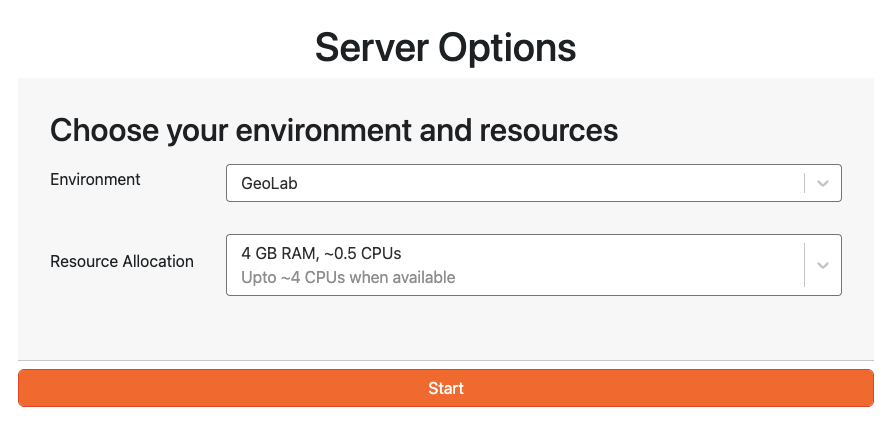
Select an Environment
Several pre-configured compute environments are available from the dropdown menu. Please see Environment Management for details on customizing your environment after launch or bringing your own image.
GeoLab
The default GeoLab image contains a variety of Python packages for a broad range of geophysical data analysis. It inherits all software in pangeo/base_image, with additional support for the EarthScope SDK/CLI and other geophysics tools. For a more thorough description of the image, see the GeoLab github (https://github.com/EarthScope/GeoLab/).
SeaFloor Geodesy
This image is intended for processing GNSS-A/Seafloor Geodesy data. It is built on Ubuntu 20.04 and includes PRIDE-PPPAR, GARPOS, and the EarthScope es-sfgtools package. For more information, see the es-sfgtools documentation.
Technical Short Course Images
The NSF NGF supports educational short courses hosted in GeoLab throughout the year. If you are attending one of these workshops, select the image for your course. Technical Short Course environments are temporary and may be modified or removed without notice. You can learn more about the NSF NGF’s technical short course offerings here.
Other...
GeoLab is compatible with custom environments configured to run in JupyterHub. Custom images must be publicly available Docker containers (e.g., on AWS ECR, DockerHub, or quay.io). Select Other from the dropdown and paste the public URL of your container. See Environment Management for details.
Build Your Own Image
GeoLab includes a mybinder extension for building a custom environment dynamically from a GitHub repository. See Environment Management for instructions.
Select your Resource Allocation
Start with the smallest server that meets your needs — larger instances consume your resource quota more quickly.
To request a larger server or GPU access, email help@earthscope.orgor fill out the NSF NGF Data Platform Resource Request Form.
Stopping Your Server and Logging Out
Always stop your server before closing your browser tab or logging out. Logging out without stopping your server first can cause errors on your next login. And, running servers will deplete your compute quotas whether the browser tab is open or not.
Go to File → Hub Control Panel and click Stop My Server.
Once the button disappears, click Log Out in the upper right corner.
Close all GeoLab browser tabs.